
Appearance
Email Accounts
Ordara connects to your email over IMAP to find and parse order confirmations. You can add as many email accounts as you need.
INFO
Your email credentials are encrypted locally on your machine and are never sent to any external server.
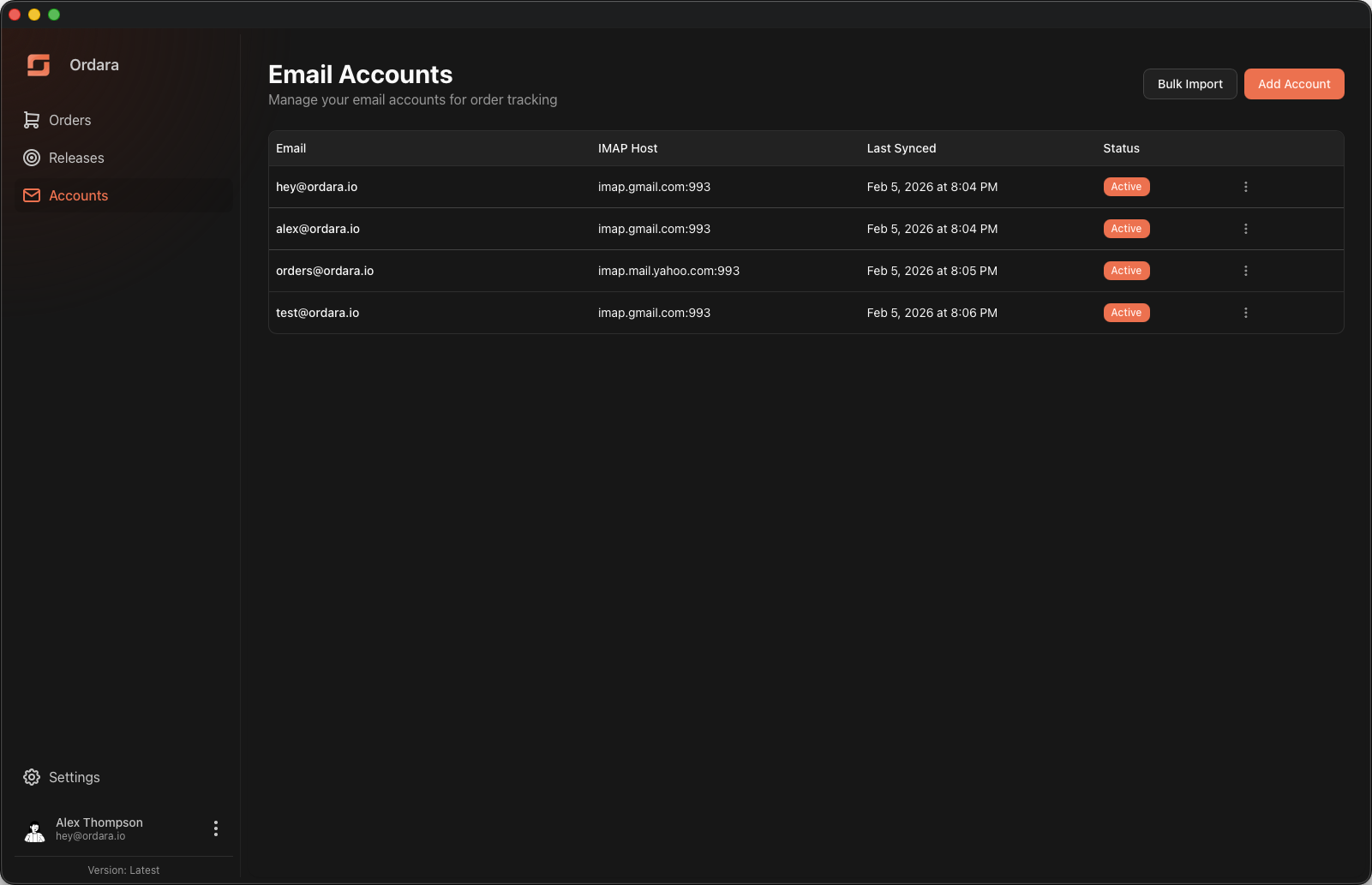
Adding an Email Account
- Open Ordara and go to the Email Accounts tab.
- Click Add Account.
- Fill in the IMAP connection details:
| Field | Description |
|---|---|
| Host | Your email provider's IMAP server (e.g. imap.gmail.com) |
| Port | Usually 993 for SSL/TLS connections |
| Username | Your full email address |
| Password | Your email password or app password (see below) |
- Click Save. Ordara will test the connection and begin syncing.
App Passwords
Most major email providers require an app password instead of your regular login password. This is a security feature of their two-factor authentication systems.
Gmail
- Go to myaccount.google.com.
- Select Security from the left sidebar.
- Under "How you sign in to Google," make sure 2-Step Verification is turned on.
- Go back to the Security page and search for App passwords (or visit myaccount.google.com/apppasswords).
- Enter a name like "Ordara" and click Create.
- Google will display a 16-character password. Copy it and paste it into Ordara's password field.
WARNING
You will only see the app password once. If you lose it, you will need to generate a new one.
Yahoo Mail
- Go to login.yahoo.com/account/security.
- Click Generate app password.
- Select Other App and enter "Ordara."
- Copy the generated password and paste it into Ordara.
Common IMAP Settings
| Provider | Host | Port |
|---|---|---|
| Gmail | imap.gmail.com | 993 |
| Yahoo | imap.mail.yahoo.com | 993 |
| iCloud | imap.mail.me.com | 993 |
For other providers, check your email provider's help documentation for their IMAP server settings.
Outlook / Hotmail
Outlook and Hotmail are not currently supported as direct connections. You can set up email forwarding to a supported provider like Gmail, or connect them through AYCD, which can read providers Ordara can't reach on its own.
Using AYCD?
If you manage your email accounts in AYCD, Ordara can read your orders through AYCD instead of connecting to each mailbox directly — useful for unsupported providers and to reduce direct IMAP connections. See AYCD Integration.
Multiple Accounts
You can add as many email accounts as you like. Ordara will sync each account independently and combine orders from all accounts into a single view. This is useful if you shop from different email addresses.
Bulk Import
If you have several accounts to add, use the Bulk Import option instead of adding them one at a time. Enter each account on its own line in email@example.com:apppassword format and Ordara will auto-detect the IMAP server, port, and encryption settings for you.
Removing an Account
- Go to the Email Accounts tab.
- Find the account you want to remove.
- Click the Remove button next to the account.
- Confirm the removal.
WARNING
Removing an email account will also delete all orders, shipments, and other data that was parsed from that account.