
Appearance
Orders
The Orders view is your central hub for everything you have purchased. Ordara automatically parses order confirmation emails from your connected accounts and organizes them in one place.
Viewing Orders
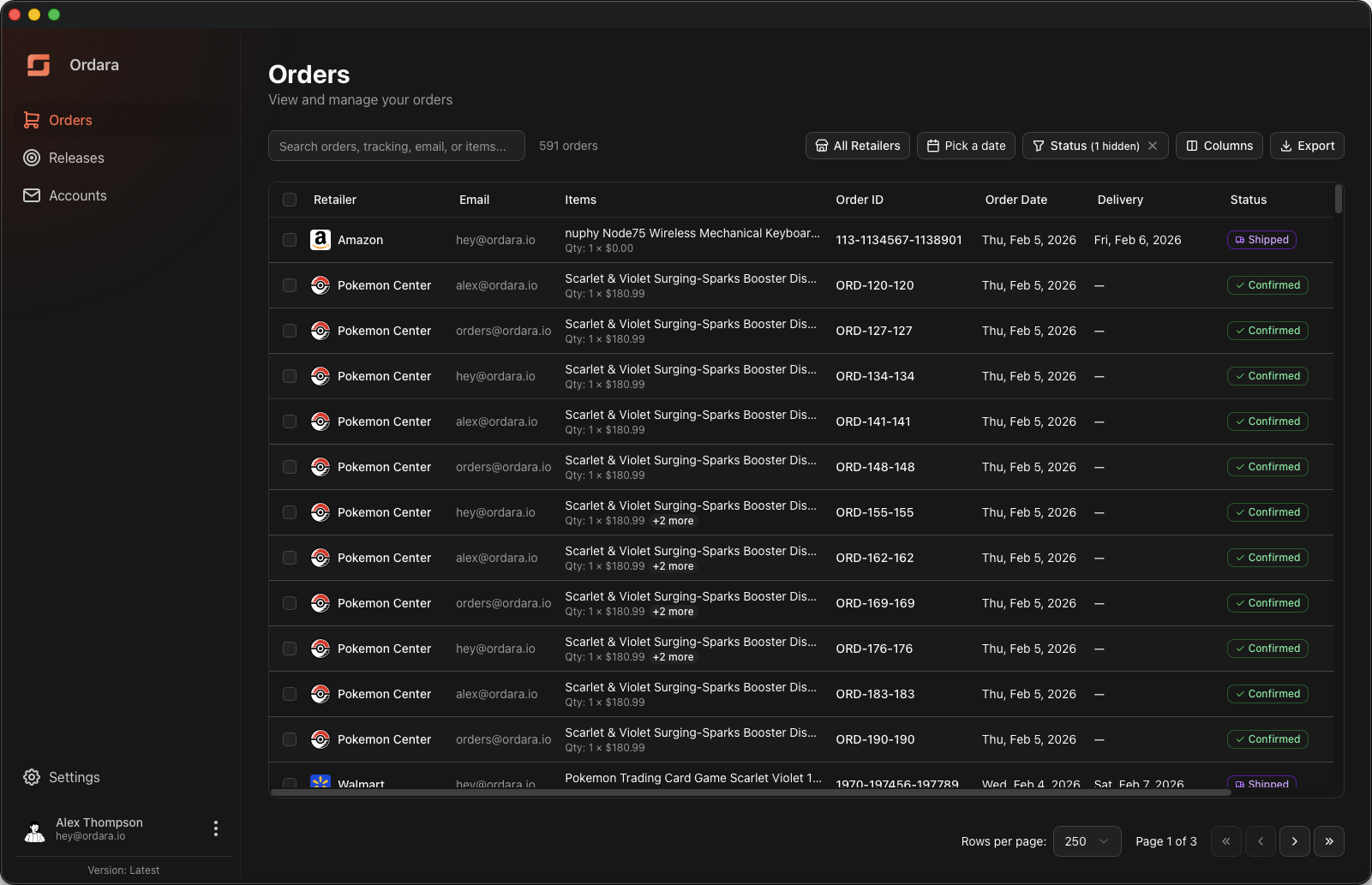
When you open the Orders page, you will see a list of all parsed orders across every retailer and email account. Each order shows:
- Retailer — the store the order came from (Amazon, Target, Walmart, etc.)
- Order number — the retailer's order or confirmation number
- Date — when the order was placed
- Items — what was in the order
- Status — current order status (confirmed, shipped, delivered)
- Tracking — tracking numbers and carrier information, when available
- Delivery estimate — expected delivery date, if provided by the retailer
INFO
Delivery dates, tracking numbers, and order status are based on information found in your emails. Ordara does not yet pull live tracking updates from carriers, so this information may not reflect the most current status.
To view an order's full details, click the three-dot menu on the right side of the row, or right-click the order row and select View Details.
Customizing Columns
You can show or hide columns on the orders table to focus on the information that matters most to you. Available columns include:
- Source Email
- Order Date
- Delivery Date
- Shipping Address
- Status
- Total
Use the column visibility toggle to customize which columns are displayed.
Sorting
Click any column header to sort the table by that column. Click again to reverse the sort order. To sort by multiple columns at once, hold Shift and click additional column headers.
Filtering Orders
You can narrow down the order list using the filter controls at the top of the page.
- Retailer — show orders from a specific retailer only
- Date range — filter by when orders were placed
- Status — show only orders with a particular status (e.g., only shipped orders)
Filters can be combined. For example, you can view all Amazon orders placed in the last 30 days that have been delivered.
TIP
Filters also apply when exporting. Set your filters first, then export to get a focused CSV. See Exporting for details.
Selecting Orders
You can select orders to perform bulk actions like exporting or archiving.
- Single click — select one order
- Ctrl+click (or Cmd+click on macOS) — add or remove individual orders from your selection
- Shift+click — select a range of orders between the last selected row and the clicked row
Once you have a selection, you can export just those orders to CSV (see Exporting) or archive them to keep your order list clean.
Archiving
Archiving lets you move older or completed orders out of your main view without deleting them. Select one or more orders and choose Archive to move them to the archive. Archived orders no longer appear in the default orders list, but you can view them at any time by selecting the archived filter under the Status filter button. To restore an archived order back to your main list, find it in the archive view and select Unarchive.
Searching
Use the search bar to find orders by order number, item name, or other details. Search works across all fields, so you can type a product name, a tracking number, or an order ID to locate what you need.
Automatic Categorization
Ordara recognizes confirmation emails from supported retailers and automatically tags each order with the correct retailer name. You do not need to sort or label anything manually.
Order Details
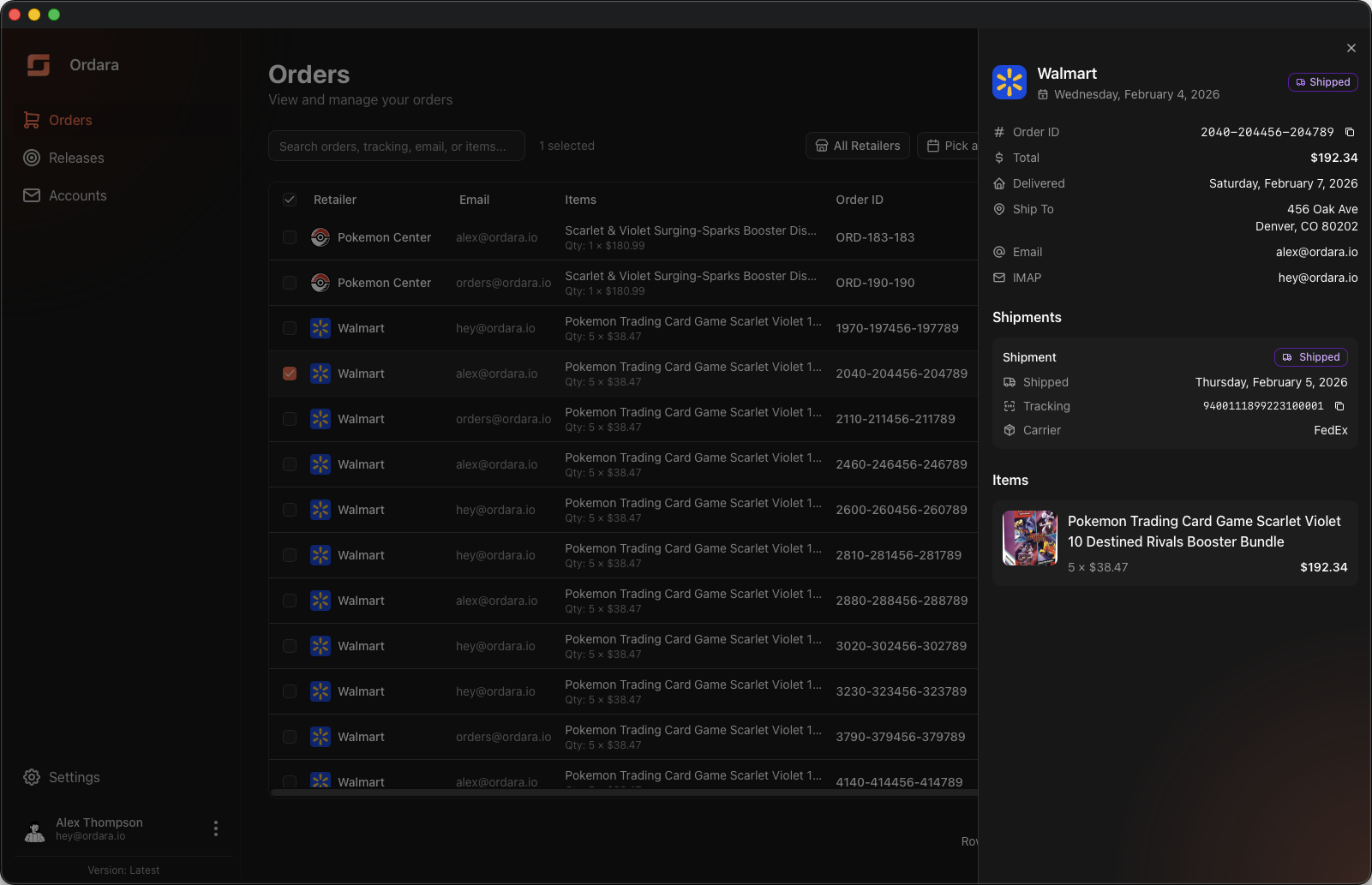
Clicking into an order shows its full details:
- All items in the order with names and quantities
- Tracking numbers linked to their carrier's tracking page
- Delivery estimates and actual delivery dates
- The original email subject and date for reference